
Microsoft Stop Onedrive:
If you are here, there is a decent chance Windows popped up that cheerful little prompt telling you to “Back up your Desktop, Documents, and Pictures to OneDrive”.
And you clicked yes. Or you clicked “Next” a few times. Or it happened during setup and you did not realize what it was doing.
Now your Desktop is inside OneDrive. Your Documents are inside OneDrive. Maybe everything is syncing, maybe you keep seeing errors, maybe your storage is filling up, maybe you just do not want your personal stuff in the cloud.
Let’s fix it. Carefully.
I’m going to show you how to stop OneDrive backup for Desktop and Documents, and also how to make Windows save locally again, because that second part is the part most guides kind of skip… and that is where the confusion and “my files disappeared” panic usually comes from.
Why you might want to stop OneDrive backup (and what “stop” actually means)
First, some clarity because Microsoft uses the word “backup” in a way that confuses everyone.
When OneDrive asks to back up Desktop, Documents, and Pictures, it is usually turning on Known Folder Move (KFM). That means Windows’ special folders get redirected into your OneDrive folder, so they sync to the cloud automatically.
So what does “stop” mean in real life?
There are a few different actions people mix up:
Pause syncing (temporary)
This is like a time-out. OneDrive stops uploading and downloading for a few hours. Your folders are still “connected” to OneDrive, it is just not syncing right now.
Stop folder backup (KFM off)
This is the thing you probably want.
It tells OneDrive: stop automatically backing up Desktop/Documents/Pictures. But. Important. It does not always automatically put your folders back to the old local paths. Sometimes it leaves your Desktop still pointing to a OneDrive path until you manually restore the folder location. We will do that later.
Unlink this PC (disconnect account)
This breaks the sync relationship entirely for that Windows user profile. OneDrive stops syncing everything on that PC. Local files usually remain on disk, but your OneDrive folder becomes just a normal folder.
Uninstall OneDrive (remove the app)
OneDrive stops running and the sync client is removed. Your online OneDrive still exists. You can still access it in a browser.
Set expectations (so you do not get surprised)
Stopping backup can change where new files save. Existing files might still be in OneDrive. And your OneDrive cloud copies probably remain online unless you delete them yourself.
Quick warning before we touch anything: avoid data loss. The only real way people lose files here is by stopping backup, then clicking through move prompts without checking what is where, then later deleting something from the wrong location.
We are not doing that.
Before you change anything: do a 3-minute safety check
This is boring, but it prevents 90 percent of the mess.
1) Check what is currently backed up
- Click the OneDrive cloud icon in the system tray (bottom right).
- Click the gear icon.
- Click Settings.
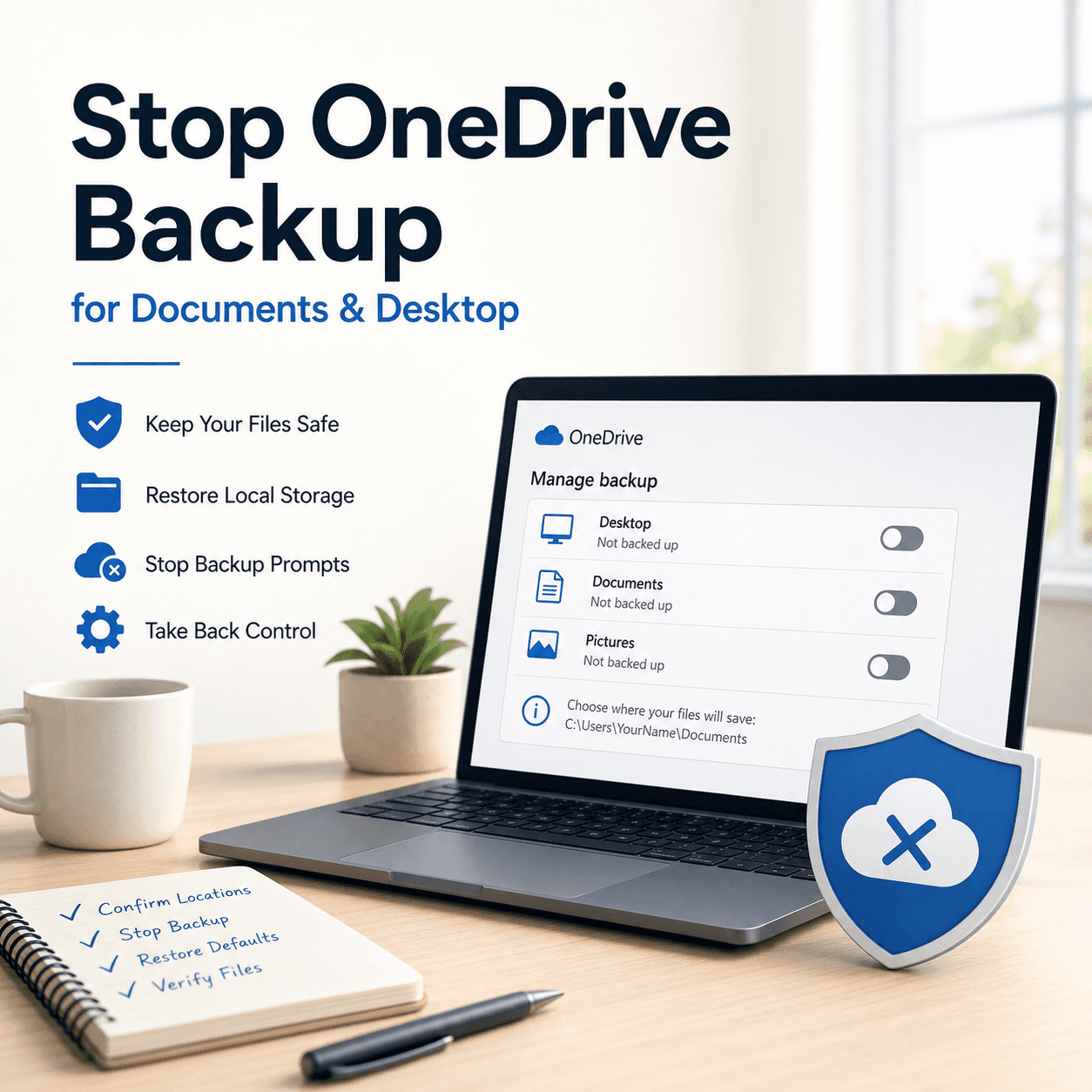
- Find Sync and backup (Windows 11 usually) then Manage backup.
You should see toggles for:
- Desktop
- Documents
- Pictures
Make a mental note of what is On.
2) Confirm where your folders actually live right now
Open File Explorer and check the left sidebar.
Click Documents. Then click the address bar at the top and look at the path.
You are basically looking for one of these:
C:\Users\YourName\Documents(local, not OneDrive)C:\Users\YourName\OneDrive\Documents(redirected into OneDrive)
Same for Desktop:
C:\Users\YourName\DesktopC:\Users\YourName\OneDrive\Desktop
This tells you what you are dealing with.
3) Verify OneDrive sync health
Look at the OneDrive icon:
- Cloud with a checkmark, usually means up to date.
- Circular arrows, syncing in progress.
- Red X, something is wrong.
If it is actively syncing tons of files, you might want to let it finish first, or at least note that changes may take a minute to settle.
4) If you are unsure, do a quick temporary backup
If anything here makes you nervous, copy your most important folder (or a few files) to:
- an external drive, or
- a separate local folder like
C:\TempBackup\
Not forever. Just as a safety net.
5) Work or school account note
If you are signed into OneDrive with a work or school account, your organization may enforce Known Folder Move. On managed PCs, you might find the toggles greyed out or OneDrive will turn it back on later. If that is you, you may need IT to change the policy.
How to stop OneDrive backup for Documents/Desktop (Windows 11/10)
Alright. Here is the actual “stop backup” part.
Step-by-step: stop folder backup (KFM)
- Click the OneDrive icon in the system tray.
- Click the gear → Settings.
- Go to Sync and backup.
- Click Manage backup.
- For Desktop, click Stop backup.
- For Documents, click Stop backup.
- (Optional) For Pictures, do the same if you want.
OneDrive will usually warn you that files may stop syncing or may remain in OneDrive. Read the prompt carefully, because sometimes Windows offers to move files back. Sometimes it does not. Sometimes it only moves future saves. It is inconsistent across versions, which is why we do the manual folder location fix later.
Turn off backup reminders and nags (where available)
Depending on your OneDrive version, you may see options like:
- notifications about backup
- prompts to protect important folders
- “Get more from OneDrive” style suggestions
In OneDrive Settings, check:
- Settings tab for notification toggles
- Sync and backup area for reminders
Microsoft changes the exact wording a lot, but if you see anything that sounds like “remind me to back up” or “protect important folders”, turn it off.
Make sure it stays off after reboot
After you stop backup:
- restart your PC
- re-open Manage backup
- confirm Desktop/Documents are still Off
If they flip back on, keep reading the next section.
Managed PCs (important)
If this is a company laptop, Microsoft Intune or Group Policy can enforce KFM. In that case, your changes might not stick. You can still sometimes unlink, but policies may also block that. At that point it is not really a “settings” problem, it is an admin policy problem.
Relevant image
If Microsoft keeps prompting you to “Start backup” again
This is a very real thing. OneDrive updates, Windows updates, even logging into Microsoft 365 apps can trigger the prompt again.
Common triggers:
- OneDrive “Finish setting up OneDrive”
- “Get more from OneDrive”
- Windows Backup app trying to be helpful
- Microsoft 365 “Save to OneDrive” nudges
What to do:
- Go back to OneDrive Settings → Sync and backup → Manage backup and confirm they are Off.
- In OneDrive Settings, turn off backup reminders/notifications if available.
- If it still nags after every update, it is often because OneDrive is trying to complete a setup flow. Just keep the toggles Off.
If it is a managed PC, again, the prompt can come from policy. You can fight it all day, it will win.
Make Windows save to the local Desktop/Documents again (the part most guides miss)
This is the big one.
Stopping backup does not always restore your Windows special folders to:
C:\Users\Name\DesktopC:\Users\Name\Documents
So even though backup is “off”, you might still be working inside:
C:\Users\Name\OneDrive\DesktopC:\Users\Name\OneDrive\Documents
And then people think OneDrive is still doing something. Or they stop sync and their Desktop looks empty. Or they end up with two Desktops.
We are going to point the folders back to the local defaults.
Restore the default location (Desktop)
- Open File Explorer.
- In the left sidebar, right-click Desktop.
- Click Properties.
- Go to the Location tab.
If you see something like:
C:\Users\Name\OneDrive\Desktop
Click:
- Restore Default
It should change to:
C:\Users\Name\Desktop
Now click:
- Apply
Windows may ask if you want to move files from the old location to the new one.
Here is the honest guidance:
- If your Desktop is currently inside OneDrive and you want your Desktop to be local again, you usually want to click Yes to move files.
- If you have already manually reorganized and you know what you are doing, you might click No, but most people should move them.
Restore the default location (Documents)
Same process:
- File Explorer
- Right-click Documents → Properties
- Location tab
- Restore Default
- Apply
- Choose whether to move files
Expected local path:
C:\Users\Name\Documents
Verify the final paths
After you do it, click into Desktop and Documents and check the address bar.
You want:
C:\Users\Name\DesktopC:\Users\Name\Documents
Not the OneDrive versions.
Optional: check Windows default save locations
On some setups, Windows also has storage settings that influence where new content is saved.
You can check:
- Settings → System → Storage → Advanced storage settings → Where new content is saved
This is more about apps and new content types, not your existing Desktop/Documents redirection, but it is worth a quick glance if things still feel off.
If you’re interested in creating a new folder that contains a specific location, such as your restored Desktop or Documents folder, this guide could provide useful information.
Relevant image
What happens to your files after you stop OneDrive backup
This is where people get tripped up. Because after all the toggles and location tabs, you can still have multiple “copies” floating around.
The three versions that might exist
- Local files on your PC (real files)
- OneDrive cloud files (what you see on OneDrive.com)
- Online-only placeholders (Files On-Demand)
Files On-Demand is the thing where a file shows in File Explorer but is not actually stored locally until you open it. It can look like you “have” the file, until you go offline.
Ensure you have local copies (do this if you care about offline access)
If you are moving away from OneDrive backup, make sure your important folders are actually downloaded.
Options:
- Right-click a folder in OneDrive → Always keep on this device
- Or temporarily turn off Files On-Demand
To find Files On-Demand:
- OneDrive Settings
- Sync and backup
- Advanced settings area (wording varies)
- Look for Files On-Demand
If you turn it off, OneDrive will download everything in the synced area, which can be a lot. So be mindful of disk space.
What remains on OneDrive.com
Stopping backup does not automatically delete your OneDrive cloud files.
So yes, your Desktop might still exist in OneDrive online. Your Documents too. That is normal.
If you want them gone from the cloud, you delete them from OneDrive.com after confirming you have local copies. Do not rush that part.
Avoiding duplicates
Common duplicate patterns you might see in OneDrive:
DesktopandDesktop (1)DocumentsandDocuments-PCNAMEDocumentsandDocuments - Personal
This usually happens when:
- you stopped and re-started backup multiple times
- you signed into a different Microsoft account
- OneDrive got confused during setup
If you see duplicates, decide which one is the “source of truth” first, then merge slowly. Dragging everything together in one angry move is how people overwrite newer files with older ones.
If you want to stop syncing entirely (but keep OneDrive installed)
Maybe you want OneDrive on the PC, but you do not want it constantly syncing.
Pause syncing vs stop syncing
- Pause syncing is temporary. Good when your internet is slow, or you are on a hotspot, or OneDrive is spiking disk usage.
- Unlink this PC is the real “stop syncing”.
How to unlink this PC
- Click OneDrive icon → gear → Settings
- Go to Account
- Click Unlink this PC
- Confirm
What happens next:
- OneDrive stops syncing.
- Your local OneDrive folder usually stays on disk (it is just not connected anymore).
- OneDrive cloud files remain online.
This is often the cleanest choice if you do not want OneDrive involved day to day, but you do not want to uninstall it.
Selective sync (good compromise)
If you only want a small subset synced:
- Open OneDrive Settings and go to Account
- Click Choose folders
- Uncheck everything you do not want synced
This way OneDrive can exist for a small work folder, without swallowing your entire life via Desktop/Documents.
Keep OneDrive for manual uploads
A simple workflow: keep OneDrive installed but do not back up Desktop or Documents. Instead, create one dedicated folder inside OneDrive — such as OneDrive\Uploads, OneDrive\Shared, or OneDrive\Work — and manually copy files there only when you actually want them in the cloud. Not everything, all the time.
If you want OneDrive gone: disable or uninstall (and what breaks)
Sometimes you just want it out.
Uninstall OneDrive
Windows 11
- Go to Settings → Apps → Installed apps
- Search for OneDrive
- Click Uninstall
Windows 10
- Go to Settings → Apps → Apps & features
- Find Microsoft OneDrive
- Click Uninstall
What changes after uninstalling:
- OneDrive stops syncing.
- The OneDrive entry may disappear from File Explorer navigation.
- Shared links still work in the browser.
- Your files remain accessible at OneDrive.com.
Disable at startup (if you do not want to uninstall)
If you just want it to stop launching automatically:
- Right-click the taskbar and open Task Manager
- Go to Startup apps
- Disable Microsoft OneDrive
You can still run it manually whenever you need it.
Advanced note: Group Policy / Registry (high-level only)
There are ways to disable OneDrive via Group Policy or registry keys, but that is mainly for managed environments or power users who understand the tradeoffs. If you are on a work PC, IT likely already uses policy anyway.
Caution: what might break or get annoying
- Microsoft 365 apps may default to “Save to OneDrive” prompts.
- Some Windows backup flows will keep suggesting OneDrive.
- If you use OneDrive for cross-device syncing, that stops.
Not a disaster, just something to expect.
Common problems (and how to fix them) after stopping OneDrive backup
Problem: Desktop/Documents look empty
This usually means you are looking at the “other” location.
Example:
- Your old Desktop files are still in
C:\Users\Name\OneDrive\Desktop - But you restored location to
C:\Users\Name\Desktop
Fix:
- Check both paths in File Explorer
- Move files from the old location to the new one (copy first if you are nervous)
Problem: Files are missing offline
That is almost always Files On-Demand placeholders.
Fix:
- Right-click the folder → Always keep on this device
- Or download the files by opening them while online
- Or disable Files On-Demand (if you have the disk space)
Problem: You now have two Desktops or two Documents
Yep. Common.
Fix approach that does not end in chaos:
- Pick your “real” folder (usually the local default).
- Sort by date in the old folder.
- Move in batches.
- Watch for duplicates and “replace” prompts. Do not blindly click Replace.
Problem: Access denied when restoring location
This can happen if folder permissions got weird, or if you are trying to restore to a protected path incorrectly.
Fix:
- Make sure you are restoring to the default path under your user profile.
- Do it from your normal Windows account (not running File Explorer as admin).
- If needed, check folder ownership, but that is a deeper permissions topic.
Problem: OneDrive errors keep popping up
If you do not need OneDrive syncing anymore, unlink it.
Fix:
- OneDrive Settings → Account → Unlink this PC
- If you still need it later, sign back in and only sync what you want.
Best practice setup: keep OneDrive, but stop automatic folder backup (recommended balance)
For most people, this is the sweet spot. You keep the convenience of OneDrive, without letting it take over your Windows user folders.
Suggested setup
- Stop KFM (backup) for Desktop and Documents
- Restore folder locations to local defaults
- Keep OneDrive syncing a dedicated folder only
Create a clean structure inside OneDrive
Inside your OneDrive folder, create something like:
OneDrive\WorkOneDrive\Manual BackupsOneDrive\ReceiptsOneDrive\Shared Stuff
And only put things there when you actually want them synced.
Make critical synced folders available offline
If you do keep a work folder synced and you need it offline:
- Right-click folder → Always keep on this device
If you want real PC backup, use real backup tools
OneDrive folder backup is not the same as a full backup.
If you want full protection, look at:
- File History
- System image backups
- Third-party backup tools
Different job.
Quick checklist
- Desktop/Documents backup toggles are Off
- Desktop/Documents location paths are restored to local defaults
- Important files exist locally (not online-only)
- OneDrive prompts are reduced (notifications off where possible)
- OneDrive.com matches what you intend to keep in the cloud
Wrap up: the safest way to stop OneDrive backup without losing files
The safest order is basically this:
- Confirm current locations (are you in OneDrive paths or local paths?)
- Stop backup (OneDrive Settings → Manage backup → Stop)
- Restore folder locations (Desktop/Documents → Properties → Location → Restore Default)
- Verify local copies (and handle Files On-Demand if needed)
- Optionally: unlink or uninstall OneDrive if you want it fully out of the way
The key idea: “Stop backup” is not “delete.” But misconfigured folder locations can absolutely make it feel like stuff vanished.
Final step, do this just to calm your brain:
- Open OneDrive.com and look at what is stored there
- Open your local
C:\Users\Name\DesktopandC:\Users\Name\Documents - Make sure you understand which is which
Once you see it clearly, OneDrive stops being scary. It just becomes… a folder again. Which is all it ever should have been.
FAQs (Frequently Asked Questions)
What does it mean when OneDrive asks to back up Desktop, Documents, and Pictures?
When OneDrive prompts you to back up Desktop, Documents, and Pictures, it is usually enabling Known Folder Move (KFM). This means Windows redirects these special folders into your OneDrive folder so they sync automatically to the cloud.
How can I stop OneDrive from backing up my Desktop and Documents folders?
To stop OneDrive backup for Desktop and Documents on Windows 10 or 11: click the OneDrive icon in the system tray, go to Settings > Sync and backup > Manage backup, then click ‘Stop backup’ for Desktop and Documents. This disables automatic syncing of these folders to OneDrive.
Will stopping OneDrive backup automatically move my folders back to local storage?
Not always. Stopping folder backup (KFM off) tells OneDrive to stop syncing those folders but may leave your Desktop or Documents still pointing to the OneDrive path. You might need to manually restore their default local folder locations afterward.
What is the difference between pausing syncing and stopping folder backup in OneDrive?
Pausing syncing is a temporary halt where OneDrive stops uploading/downloading files for a few hours but keeps the folders connected. Stopping folder backup disables automatic syncing of specific folders like Desktop/Documents permanently until re-enabled.
How do I check where my Desktop and Documents folders are currently stored?
Open File Explorer, click on Documents or Desktop in the sidebar, then look at the address bar’s path. If it shows something like C:\Users\YourName\OneDrive\Documents, it means it’s redirected into OneDrive; if it shows C:\Users\YourName\Documents, it’s stored locally.
What precautions should I take before stopping OneDrive backup to avoid data loss?
Before changing any settings, verify what folders are backed up via OneDrive settings, confirm current folder locations in File Explorer, check OneDrive sync status for errors or ongoing syncing, and if unsure, make a quick manual backup of important files to an external drive or separate local folder as a safety net.










Leave a Reply